The projects
How projects works ?
In the "Understanding Antigone's Architecture" section, we covered the topic of project structure. In this section, we'll see how to use projects.
As you’ve understood, in Antigone, the project is the container that holds all the Antigone modules. You can save and load as many projects as you want on the SD card.
Main Project Screen:
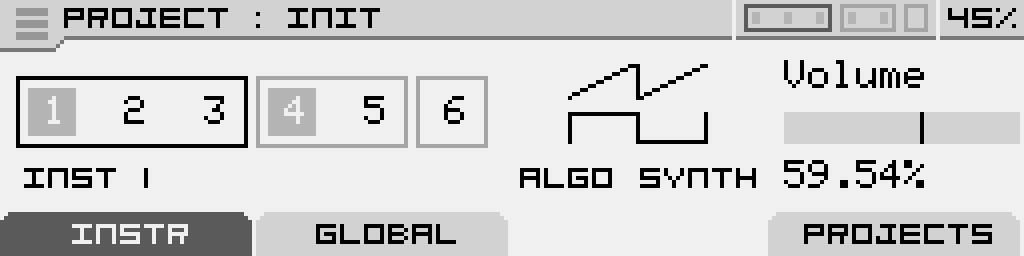
The project screen is the first screen displayed when the module is powered on. It provides an overview of the instruments and their voices. On this screen, you can create a new project, save it, load an existing one, and access all of Antigone’s functionalities.
INSTR Tab
Representation of Instruments and Voices

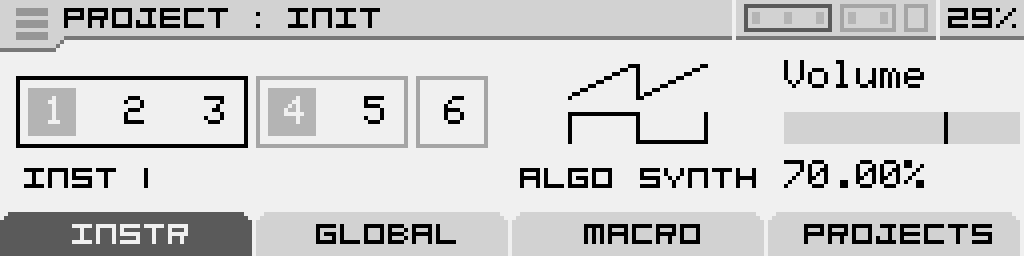
These numbers from 1 to 6 represent the 6 voices of Antigone. In the example configuration above, we can see 3 groups of voices representing 3 instruments:
- A first instrument with 3 polyphonic voices (voices 1-2-3). The highlighted square on main voice 1 indicates a machine is loaded in this instrument. A brighter border also surrounds this instrument, indicating it is currently selected. (You can change this selection by turning the encoder left or right)
- A second instrument with 2 polyphonic voices (voices 4-5). The highlighted square on main voice 4 shows that a machine is loaded in this instrument.
- The third instrument has no machine loaded, and is therefore not usable.
Each time a note is played on a voice, a highlighted square is also displayed.
This voice configuration is what we call the "VOICE LAYOUT" in Antigone. A full section on configuring this layout is available in this documentation.
This voice representation is always visible in the screen header:  and always lets you know which instrument you're currently editing. The voices also light up when a note is played.
Instrument Name and Icon
 |
Below the voice layout, you’ll see the name of the selected instrument. Here, it's labeled "INST 1" by default. If a preset exists, its name will be used instead. |
 |
And to the right of the voice layout, there is the icon representing the machine loaded into the instrument. |
Instrument Volume
A volume parameter for the selected instrument is directly accessible from this page and can be adjusted using the potentiometer below (4). This same parameter is also available in the "MIXER"
Accessing an Instrument’s Parameters
To access the selected instrument, simply press the encoder. You’ll then enter the configuration screen of an "INSTRUMENT".
GLOBAL Tab
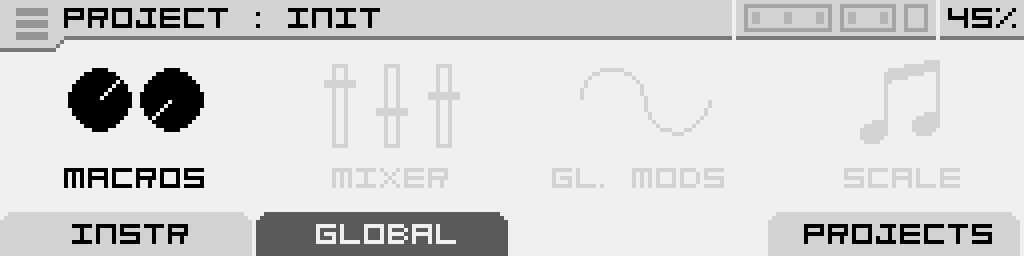
The second tab, "Global", gives access to all global modules, including:
- MACROS
- MIXER
- GLOBAL MODULATIONS
- SCALE QUANTIZER
- MODULATION MATRIX
- CLOCK (internal/external clock)
PROJECTS Tab
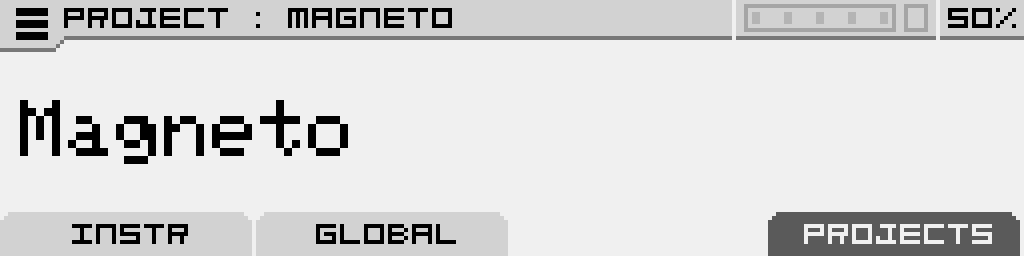 This tab allows you to quickly browse through saved projects in the current directory. Turn the encoder left or right to directly load the next or previous project.
Burger Menu
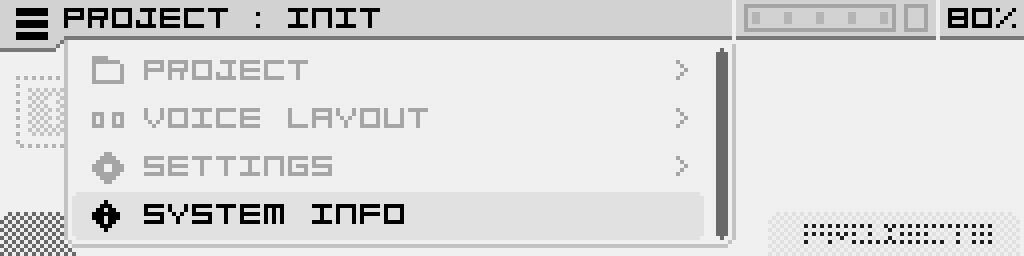
Located in the top-left corner, the burger menu becomes accessible when highlighted (turn the encoder fully to the left to select it)
From the burger menu, you’ll be able to:
- PROJECT (For more details about files and templates, visit the page: "FILES & TEMPLATES")
- PROJECT BROWSER (Access the project explorer on the SD card)
- SAVE PROJECT (Save the current project)
- SAVE PROJECT AS... (Save the project under a new name)
- NEW PROJECT (Opens a submenu with project templates stored on the SD card)
- VOICE LAYOUT (For more details, visit the page: "VOICE LAYOUT")
- LAYOUT BROWSER (Access the layout explorer on the SD card)
- SAVE LAYOUT (Save the current voice layout)
- SAVE PROJECT AS... (Save the voice layout under a new name)
- NEW LAYOUT (Opens a submenu with layout templates stored on the SD card)
- SETTINGS
- CALIBRATION (For more information, visit the page "CALIBRATION")
- SYSTEM INFO (For more information, visit the page "SYSTEM INFO")
Files & templates (todo)
Voice layout
How the Voice Layout Works
On the page "How Projects Work" we saw how voice allocation is represented for each instrument. Antigone has a total of 6 voices, distributed among the 6 instruments. The combination of all instruments will always total 6 voices or less.
Voice configuration is done on the main "PROJECT" screen. If you want to change the number of voices allocated to an instrument, it's very simple:
- Turn the encoder to highlight the instrument you want to edit, as shown in the example below.
- Hold down the encoder until the selection starts blinking. From that moment on, you can turn the encoder to the right to add voices or to the left to remove them. Let's add a voice, as shown on the following screen:
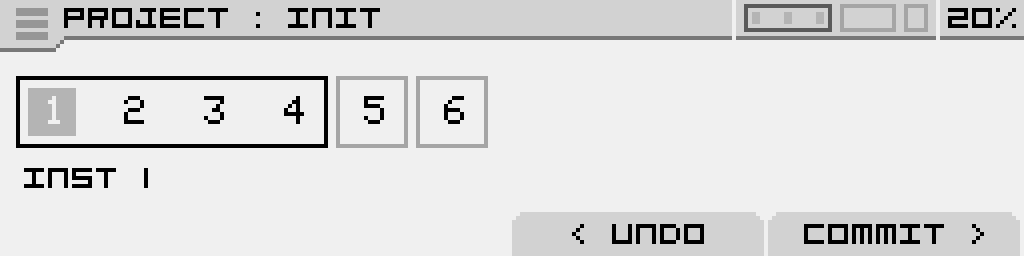
- Press button 4 "COMMIT" to validate the new Voice Layout. Instrument number 1 now has 4 voices!
- Press button 3 "UNDO" if you want to cancel the changes and revert to the current voice layout.
System info
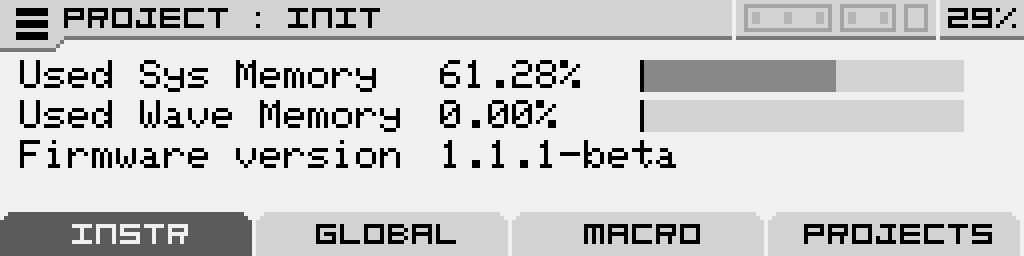
The system information page provides an overview of the project's memory usage as well as the firmware version.
| Used Sys Memory | This is the memory occupied by the system. This memory space is managed automatically and cannot be modified. This allocation represents approximately 4 MB of memory. |
| Used Wave Memory | This memory is used for loading samples and wavetables. This allocation represents approximately 12 MB of memory. If memory usage approaches 100%, you may no longer be able to load additional samples or wavetables. (A warning message will be displayed when loading in this case.) |
| Firmware version | Indicates the firmware version currently installed on the Antigone. |
How to access system information?
From the "PROJECT" page (main screen), tap the burger menu located at the top left, then scroll down to "SYSTEM INFO" and select this option.
The page may take several seconds to load while calculating memory usage.